Alliance Manager allows leaders to track MVP records for Standard Events, Alliance Chess, and Battle of the Ruins.
Currently these are the three available categories for tracking and not required to use.
Leaders can add records for their members, and the bot will keep track the MVP records for each member in each category.
This allows leaders to easily see who has been voted MVP in their alliance most recently for the next event vote.
A blocking feature is also available for any members who wish to opt out of MVP votes and/or other personal reasons. The block can be placed on any member and their name will not come up in the selection while entering records.
To enter a new MVP record use the command "/editmvp"
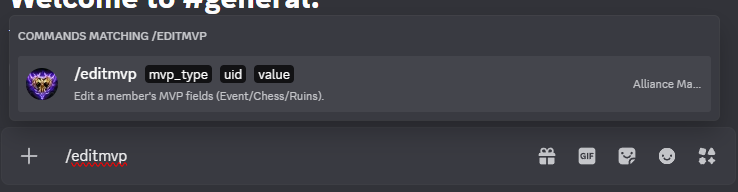
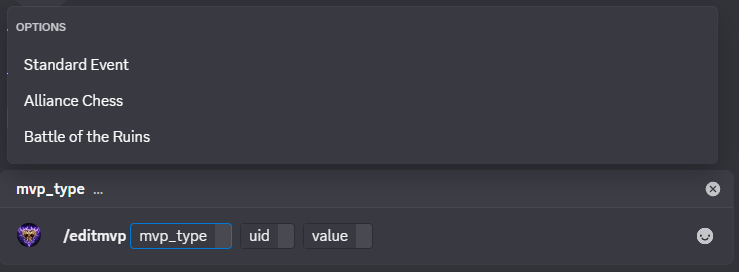
After entering the command, the first question is the event type, followed by selecting the member, and finally entering the date of the vote.

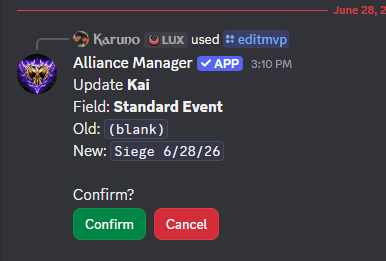
After entering the information and sending the message, a confirmation message will appear.
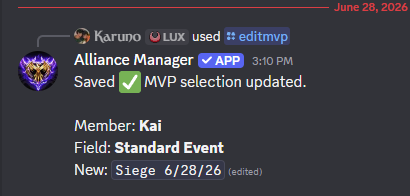
The final posted result is now displayed in a manor that could be placed in a channel for MVP announcements.
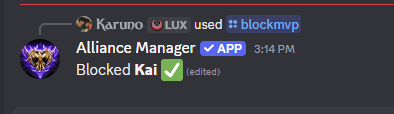
Use the command "/blockmvp" to block a member from being selected for MVP. You'll enter the player information and a note can be added as well.
Please note: this does not block the member from you in Discord. This is only to prevent any potential mistakes when choosing an MVP.
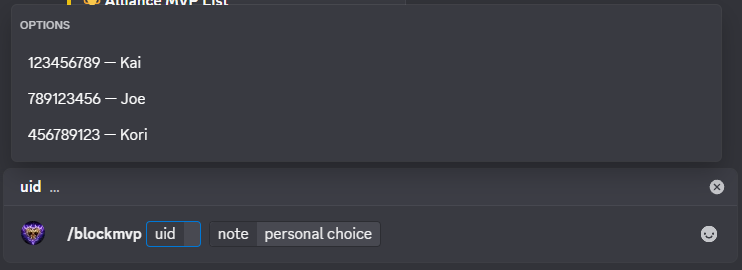
After entering the information and sending the message, a confirmation message will appear.
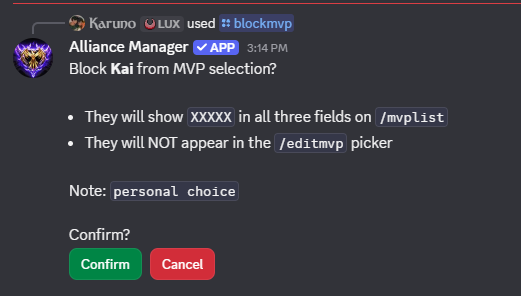
The final confirmation is displayed.
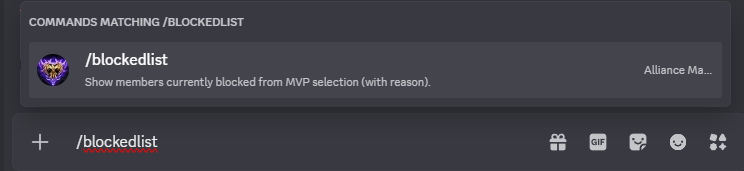
To view the list of blocked members, use the "/blockedlist" command.
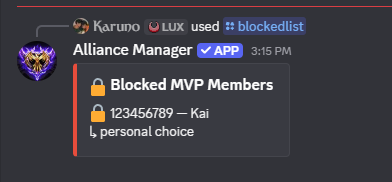
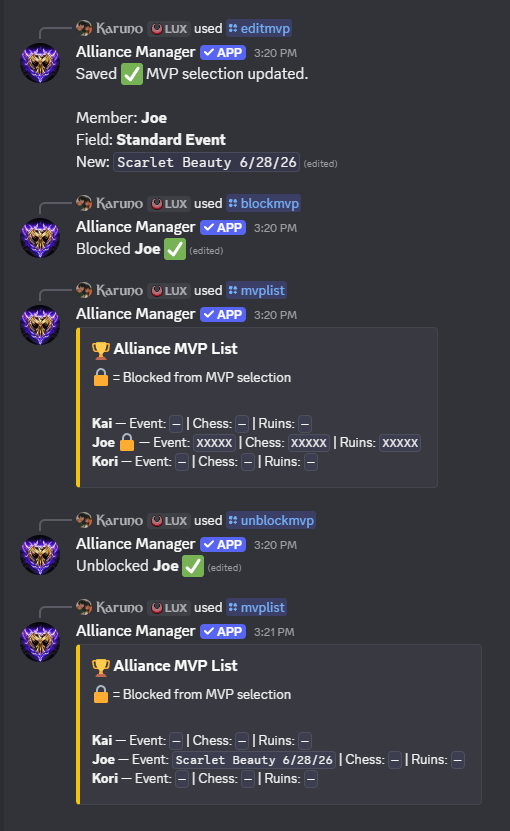
A demonstration of what a "blocked" player looks like using /mvplist.
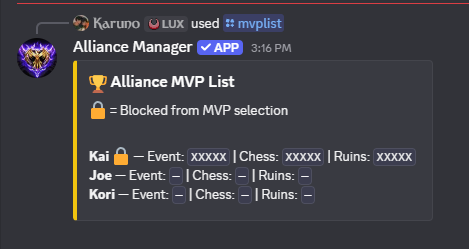
To view the list of MVP records, use the "/mvplist" command.
Displays the list of MVP records.
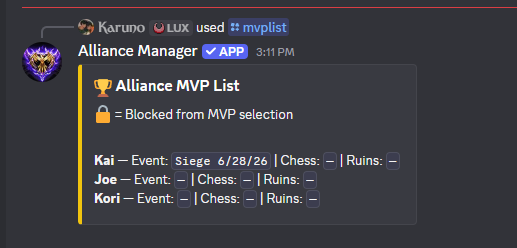
To clear the MVP records for all members in a specific category, use the "/resetmvp" command. This will remove all records for that category and cannot be undone, so use with caution and ensure to use backup files if needed.
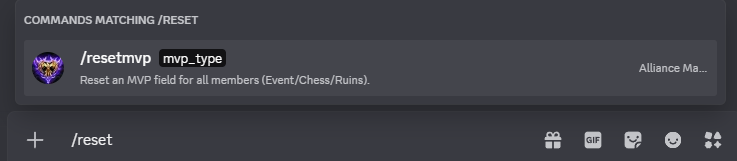
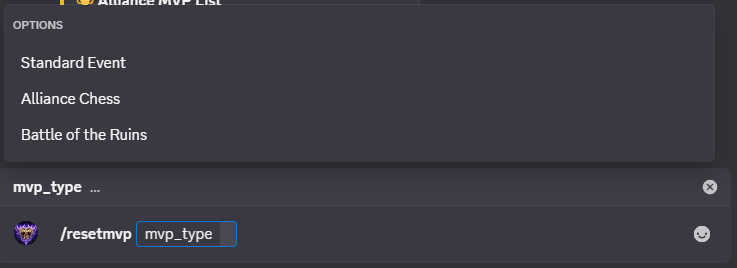
After entering the command, select the category to reset.
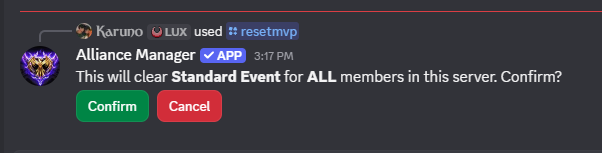
After selecting the category, a confirmation message will appear.
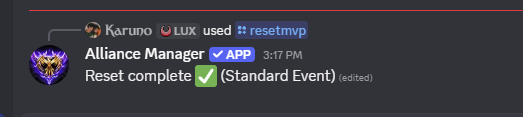
Once confirmed the final message will be displayed, confirming the reset of that category.
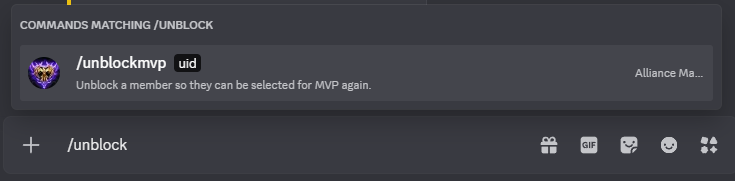
Use the command "/unblockmvp" to unblock a member from MVP selections. You'll enter the player information.
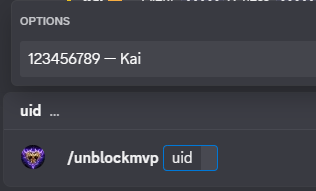
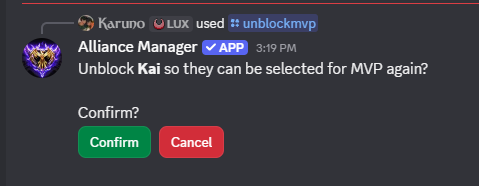
After entering the information and sending the message, a confirmation message will appear.
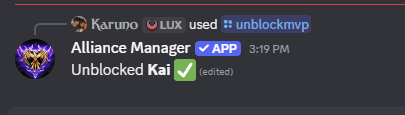
The final confirmation is displayed.
Additional notes from testing:
Should you have any records entered for a player and then proceed to block them, the records will remain in the background but won't show on the MVP list. These records will however disappear if a reset command is used.
If a reset is not used and the player is unblocked then be prepared for those old records to appear the next time MVP list is used.
 ← Back to Home