Have you ever had a name theme for your alliance and suddenly forgot who everyone is after they change their names in game?
This feature allows leaders to track the in-game nicknames that members choose and is tracked by UID with a very easy to read list command.
By utilizing the UID with the bot you are also able to use the MVP tracking feature which will provide their current alt. name while entering information.
Type the command "/setup" to set the alliance name and ensure the proper roles are set up in the server to use the bot.
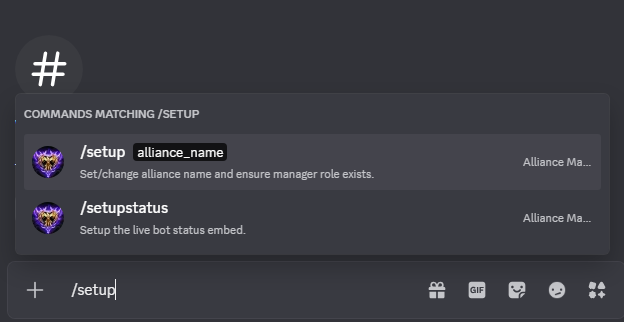
Type your alliance abbreviation and name.

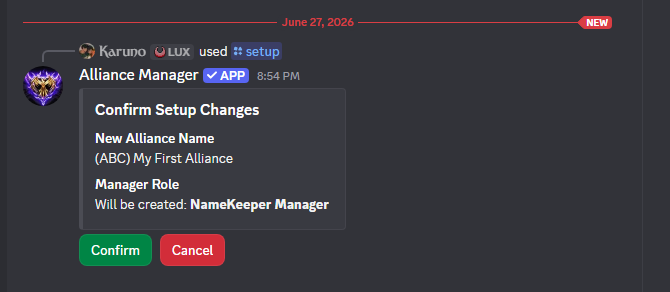
Confirm the setup details.
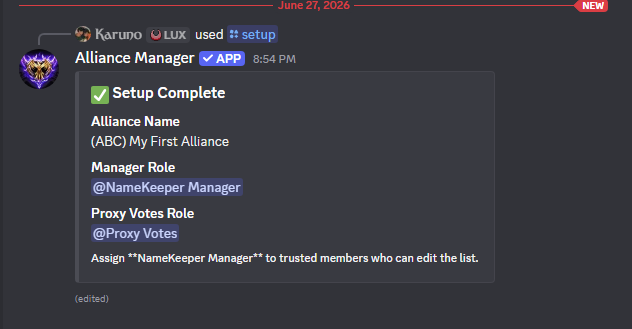
Confirmation message shows the entered alliance name and shows the roles that were created to use the bot.
Type the command "/addmember"
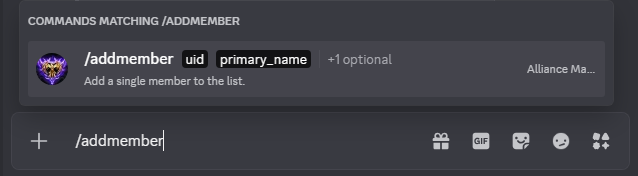
Enter their UID and primary in-game name. If they already have an alt nickname you can enter that as well.
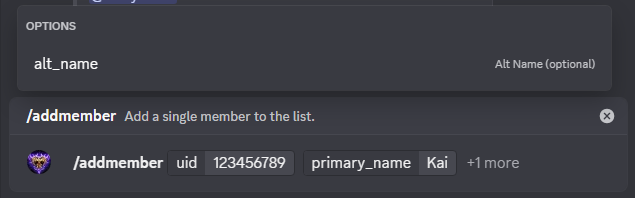
The bot will confirm the information entered and once confirmed, add them to the list.
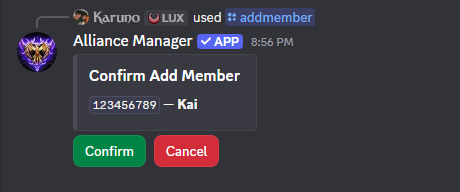
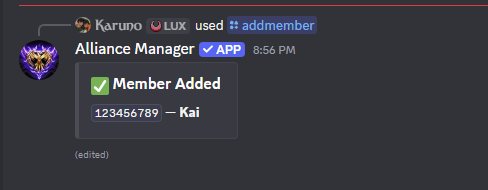
Once added the info shows in a success message.
To view the list of members, use the command "/listmembers".
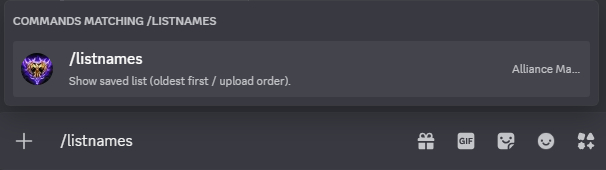
The embedded list will show all added members and their current nicknames.
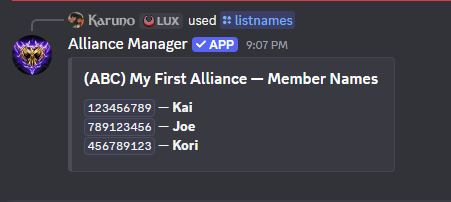
An additional helpful feature of the bot for adding multiple new members all at once is the command "/bulkadd".
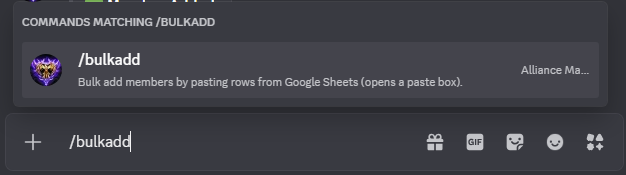
When entered it opens a new window to copy and paste a list from Sheets or Excel
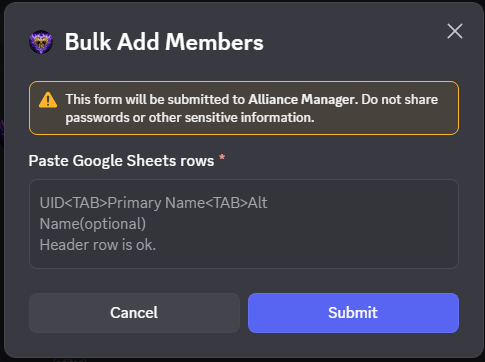
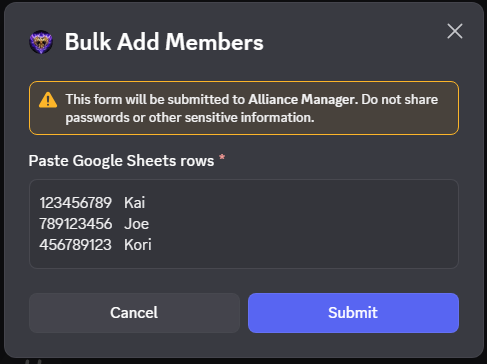
Once pasted, submit the info and a confirmation message appears providing the details. If any UID are duplicated it will skip them.
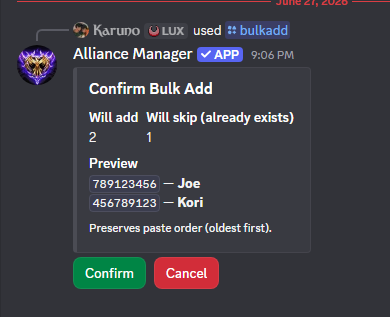
The final confirmation message will only show the number of members added and the number of members skipped.
To view the full list of members use the command "/listmembers".